Kaliper Documentation
Attribute filters
The problem it solves
Buyers operate within hard rate limits — a finite number of leads they can handle. Every ping that falls outside a buyer's criteria is a wasted slot: it consumes capacity, triggers a rejection, and adds noise that dilutes the value of the traffic you send.
Attribute Filters let you pre-screen pings against the demographic profile of the person behind the phone number, so that only pings matching a buyer's actual target audience make it through.
The result is a measurable improvement in traffic quality: less noise reaching buyers, higher acceptance rates, and buyer capacity used on leads that have a real chance of converting.
How it works
Attribute filters let you suppress pings based on the personal profile of the person behind the phone number. Instead of filtering on traffic source or geography alone, you can route — or block — based on demographic data: age, income, credit score, home ownership, state, and more.
Filters are configured per entity (publisher, campaign, buyer, or target) and evaluated in real time during every ping delivery.
When a ping arrives, Kaliper looks up the caller's profile from its enrichment cache. It then evaluates the attribute filter rules you've configured on each entity.
If any entity's rules trigger suppression, the ping is blocked. Evaluation stops at the first suppression — it doesn't continue checking downstream entities.
Within a single entity, all rules are evaluated with AND logic: every rule must pass for the ping to proceed past that entity.
Requirements
Attribute Filters require Profile Enrichment to be enabled for your organization.
Additionally, profile data is only fetched when the caller's phone number is valid. Pings with shorter or malformed numbers are treated as having no profile.
Setting up rules
Rules are configured in the Relay Settings tab of each entity. The editor is available on publishers, campaigns, buyers, and targets.
Adding a Rule
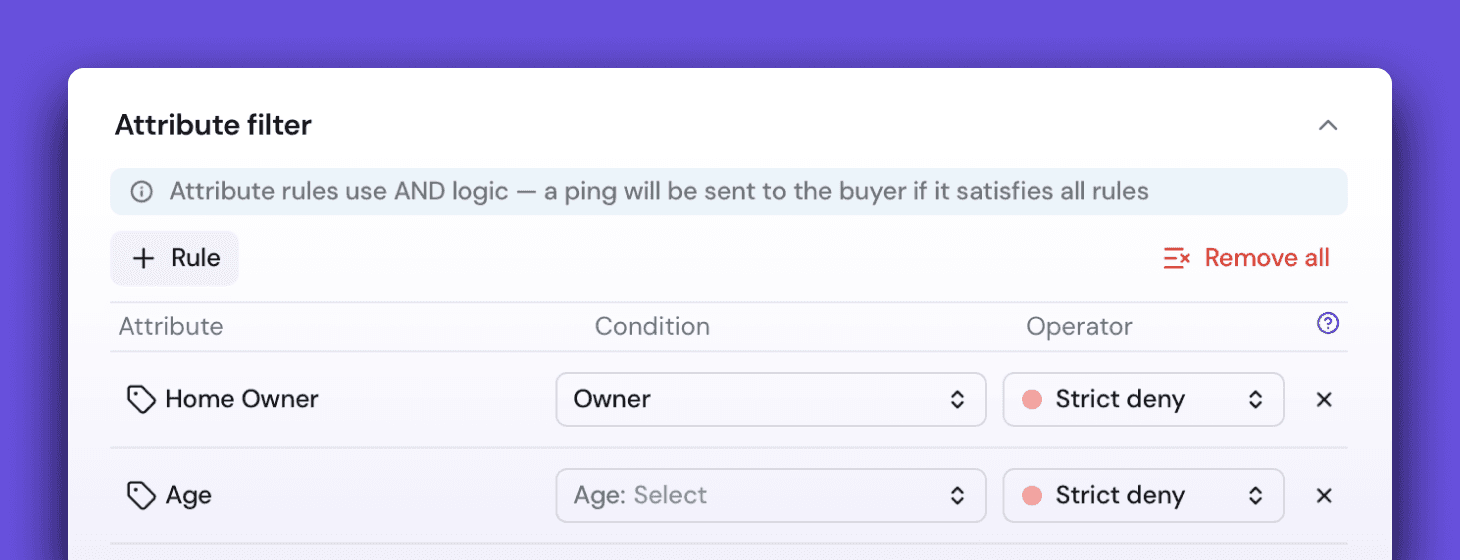
Click + Rule and select an attribute from the dropdown. After adding, you'll see a row with three parts:
Attribute — the demographic field (e.g., Age, State, Credit Score)
Condition — the value or range to match against
Operator — what to do when the attribute matches, and what to do when data is missing
To remove all rules at once, use the Remove all button. You'll be asked to confirm.
Available Attributes
Attribute | Condition | Range / Options |
|---|---|---|
Age | Min / Max | 0–120 |
State | Comma-separated state codes | US states (e.g., |
Income | Min / Max | $0–$1,000,000 |
Credit Score | Min / Max | 300–850 |
Home Owner | Dropdown | Owner ( |
Gender | Dropdown | Male ( |
Marital Status | Dropdown | Married ( |
Veteran | Dropdown | Yes ( |
Net Worth | Min / Max | $0–$10,000,000 |
Language | Comma-separated ISO codes | e.g., |
Household Vehicles | Min / Max | 0–20 |
Household Adults | Min / Max | 0–20 |
Latest Vehicle Year | Min / Max | 1980–2030 |
We're adding new attributes regularly. See the full list in the interface.
Operator
Every rule has an Operator — a combined choice of two settings:
Decision:
ALLOW(only let matching pings through) orDENY(block matching pings)Strict: what to do when the profile has no data for this attribute
This produces four distinct modes:
Mode | When data matches | When data doesn't match | When data is missing |
|---|---|---|---|
Soft Allow | Pass | Suppress | Pass |
Strict Allow | Pass | Suppress | Suppress |
Soft Deny | Suppress | Pass | Pass |
Strict Deny | Suppress | Pass | Suppress |
Choosing the right mode
Use ALLOW when you only want a specific audience. For example, "only send pings from homeowners." If enrichment data is available and the person is not a homeowner, the ping is suppressed.
Choose Strict Allow when you need to guarantee the audience — missing data is treated as disqualifying.
Choose Soft Allow when you want to keep unknown callers in the pool — missing data lets the ping through.
Use DENY to exclude a specific group. For example, "never send pings from callers under 25."
Choose Strict Deny when you want to be conservative — missing data is treated as disqualifying (same as if they were in the excluded group).
Choose Soft Deny when you want to be permissive — missing data lets the ping through.
Evaluation chain and logic
Rules are checked in this order for every ping:
The first entity that suppresses the ping ends evaluation. If all entities pass, the ping proceeds to delivery.
Within a single entity:
All rules use AND logic — every rule must pass
The first rule that returns SUPPRESS stops evaluation for that entity immediately
Profile data and Enrichment
Profile data is sourced from Kaliper's profiler cache, populated by external enrichment providers. The cache stores household-level demographic data keyed to the caller's phone number.
Important limitations of the underlying data:
Coverage is not 100%. Many phone numbers have no enrichment record. Rules in Strict mode will suppress these pings; rules in Soft mode will pass them.
Values are midpoints. Income, net worth, and credit score are midpoint values derived from modeled data — not verified figures.
Relationship to Dataset conditions
Attribute conditions are also used in Dataset LIST rules as condition types. The same attribute fields, operators, and matching logic apply. If you're already using attribute conditions in datasets, the behavior is identical — the difference is that dataset rules only control which pings get added to a dataset, while entity-level attribute filters run earlier in the pipeline (before dataset matching) and apply globally to all pings through that entity.
Common scenarios
Block pings from callers under 18 Add one Soft Deny rule on Age ≤ 18. Callers without age data are passed through.
Only send to homeowners over 40 with a credit score above 650 Add three rules to the relevant target:
Strict Allow on Home Owner = Owner,
Strict Allow on Age ≥ 40,
Strict Allow on Credit Score ≥ 650.
All three must pass. Unknown profiles are suppressed.
Restrict a campaign to specific states Add a Soft Allow rule on State = CA, TX, FL at the campaign level. Pings from other states are suppressed; pings with no state data pass through.
Guarantee a veteran audience for a buyer Add a Strict Allow rule on Veteran = Yes at the buyer level. Only verified veterans pass; anyone with missing or non-matching data is suppressed.
Limitations
Limitation | Detail |
|---|---|
Requires Profile Enrichment | Feature is gated per organization |
Phone must be valid | No profile lookup for shorter numbers; Strict rules will suppress |
Enrichment data may be absent | Strict rules suppress; Soft rules pass when data is missing |
Values are midpoints | Income, credit, net worth are modeled midpoints, not verified figures |
US-centric data | State field uses US codes; enrichment coverage is strongest for US phone numbers |
© 2026 A-Launch. All rights reserved.